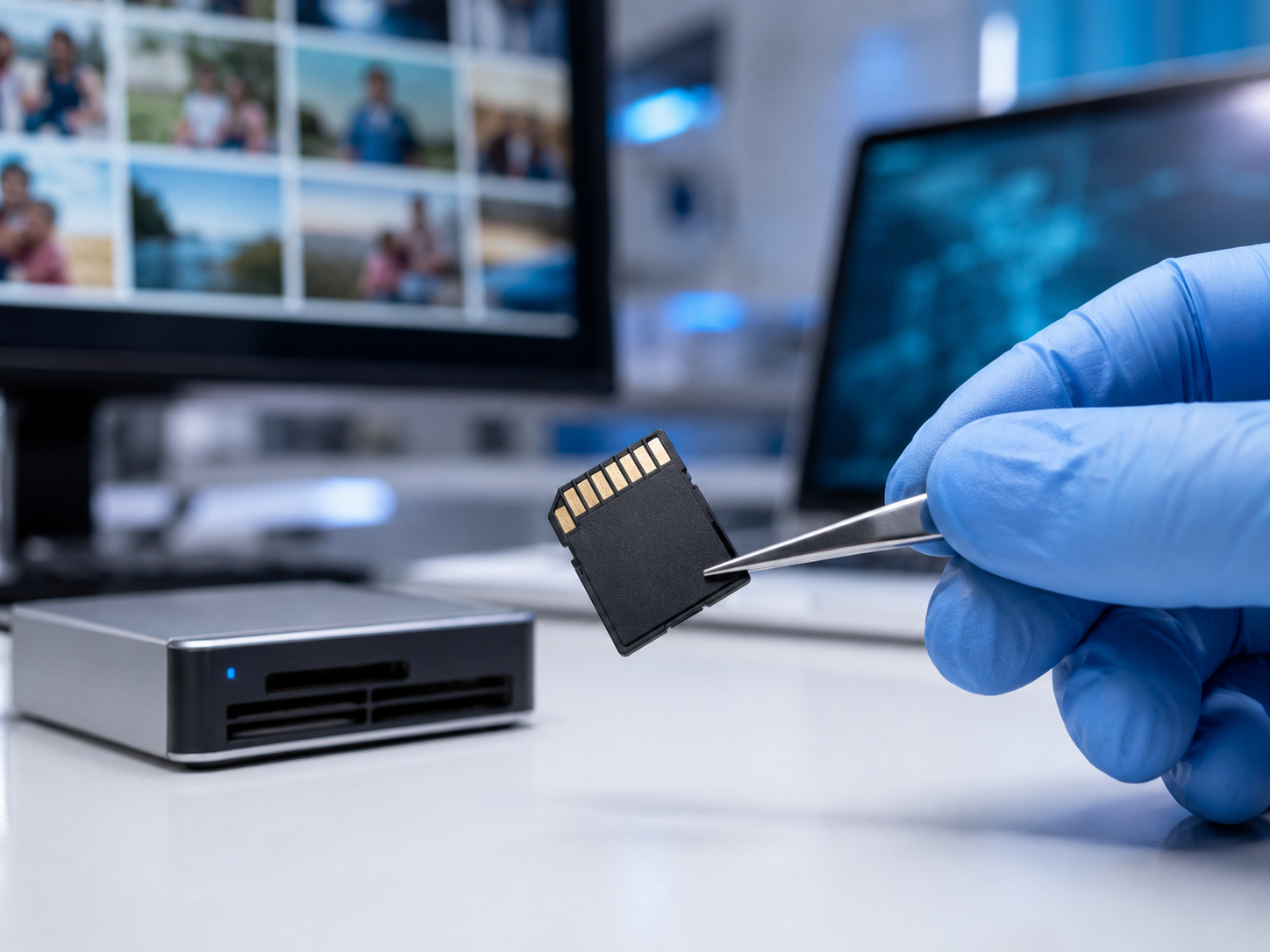
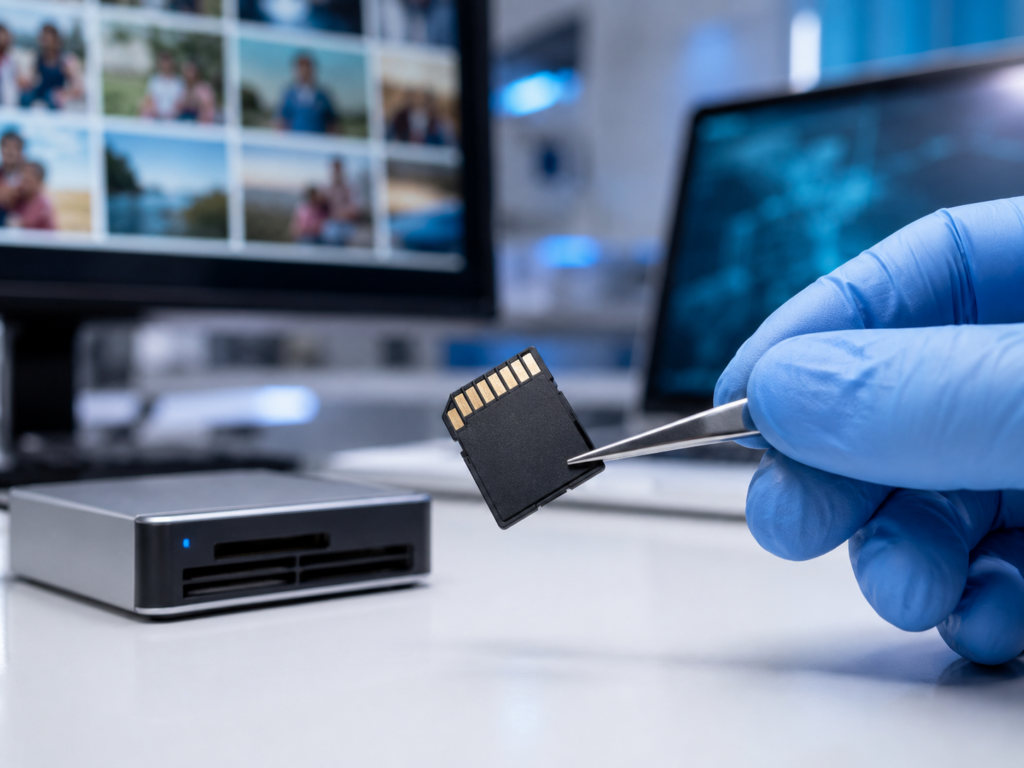
Technician working to recover deleted photos from a memory card in a clean lab

How to Recover Deleted Photos Without Losing Them Forever

Technician working to recover deleted photos from a memory card in a clean lab

We have all felt that jolt of panic. You go to look at a treasured picture, and it is simply gone. Maybe you tapped delete by mistake. Maybe a memory card glitched, or a phone update wiped your gallery overnight. Whatever happened, you want to recover deleted photos, and you want to do it without making things worse. Here is the reassuring part. Deleted rarely means gone right away. At DataLab Recovery, we have rescued precious files since 2001, so we know which steps help and which ones quietly destroy your pictures for good. This guide walks you through it, calmly and step by step.

What Really Happens When You Delete a Photo

Here is the part that surprises most people. When you delete a photo, the image data usually does not vanish at once. Instead, your device simply marks that space as free to reuse. The actual picture often sits there, invisible but intact, until something new writes over it.

That single fact is the key to everything. It explains why fast action matters so much. The sooner you stop using the device, the better your odds of saving those memories.

The exact rules do change from device to device, though. On a computer or external hard drive, deleted photos can linger for a long time. On phones and many solid-state drives, however, a feature called TRIM can erase them within seconds. Memory cards behave differently again. So the type of device matters, and so does speed.

How to Recover Deleted Photos Step by Step

Ready to act? Follow these steps in order to recover deleted photos the safe way. Above all, move calmly and avoid any rush.

Step 1: Stop Using the Device Right Away

This first step matters more than any other. The moment you notice pictures are missing, stop using that phone, camera, or card. Do not take new photos. Do not download apps or save files. Every new piece of data risks overwriting the very images you want back. If the photos lived on a memory card, eject it safely and set it aside.

Step 2: Check the Easy Places First

Next, look in the obvious spots before anything else. Many devices hold deleted items for a while. On a phone, open the Recently Deleted or Trash album inside your gallery app. On a computer, check the Recycle Bin or Trash folder. Also check your cloud accounts, since services like iCloud or Google Photos often keep copies you forgot about. You might recover deleted photos in seconds, with no special effort at all.

Step 3: Handle Memory Cards the Safe Way

Most lost pictures live on memory cards, so treat them with extra care. First, remove the card from the camera or phone. Then read it on a computer using a card reader, rather than through the device itself. Crucially, never save anything new onto that card. Writing fresh data is the fastest way to lose the photos for good.

Step 4: Use Recovery Software Carefully

If the easy checks come up empty, reputable photo recovery software can sometimes help. Still, use it with caution. Only run it on a device that is physically healthy, never one that is damaged or unreadable. Most importantly, always save the recovered pictures to a different drive. Saving them back onto the same card can overwrite the files you are trying to rescue.

Step 5: Know When to Call a Professional

Finally, recognize the moment to stop. If a card is bent, water-damaged, or not recognized at all, do-it-yourself tools can do real harm. The same is true once you have formatted a card or made many failed attempts. At that point, professional photo recovery is the safest choice. You can request a free recovery evaluation and let trained engineers assess the card before you risk anything else.

How to Protect Your Photos Going Forward

Recovery is a relief. Prevention, however, is far easier and far less stressful. A few simple habits mean you may never need to recover deleted photos again.

Back up in more than one place. Keep your pictures in at least two spots, such as your computer and a cloud account. That way, a single failure never wipes out everything you own.

Turn on automatic backup. Most phones can sync photos to the cloud on their own. Switch this feature on, and your latest pictures get saved without you lifting a finger.

Clear your cards regularly. Do not let one memory card hold years of memories. Instead, copy photos to a safe place often, then format the card fresh for reuse.

Replace aging storage. All storage wears out eventually. In fact, independent testing by Backblaze found that hard drives still fail at a rate of around 1.36% a year. So retire old cards and drives before they let you down.

Final Thoughts on How to Recover Deleted Photos

Losing photos feels personal, because it is. These are your memories, not just files. Yet panic rarely improves the situation. The smartest response is almost always the calmest one.

Remember the golden rule when you recover deleted photos: the less you do to the device, the more can usually be saved. So stop using it, check your backups first, and never write new data over the space where your pictures lived. For damaged or formatted cards, trust the experts rather than risky guesswork.

Your memories are worth protecting. If your photos truly matter, do not gamble on trial and error. Reach out, ask questions, and get an honest assessment before you decide anything.

Frequently Asked Questions

Here are the questions we hear most often about how to recover deleted photos.

Can permanently deleted photos be recovered?

Often, yes. Even after a photo leaves the Recently Deleted folder, its data may still sit on the device until new files overwrite it. So the sooner you stop using the device, the better your chances. Once the space is reused, though, the picture is usually gone for good.

Can you recover photos after formatting a memory card?

Sometimes. A quick format does not always erase the underlying data right away, so recovery can still work. However, you must stop using the card immediately and avoid taking new pictures. For a formatted card, a specialist gives you the best odds by far.

Is photo recovery software safe to use?

It depends on the situation. On a healthy device, careful use of reputable software can help you recover deleted photos. On a damaged or unreadable card, though, that same software can cause more harm, so professional help becomes the safer route.

How can I recover photos deleted from my phone?

Start with the Recently Deleted album and your cloud backup, since copies often live there. If that fails, connect the phone to a computer and avoid using it further. For stubborn cases, you can submit your case and let trained engineers take a closer look.


Disclaimer: This article is for general information only. Every data loss situation is unique, and recovery outcomes depend on the device and the cause of the loss. For advice specific to your case, please consult a qualified data recovery professional.
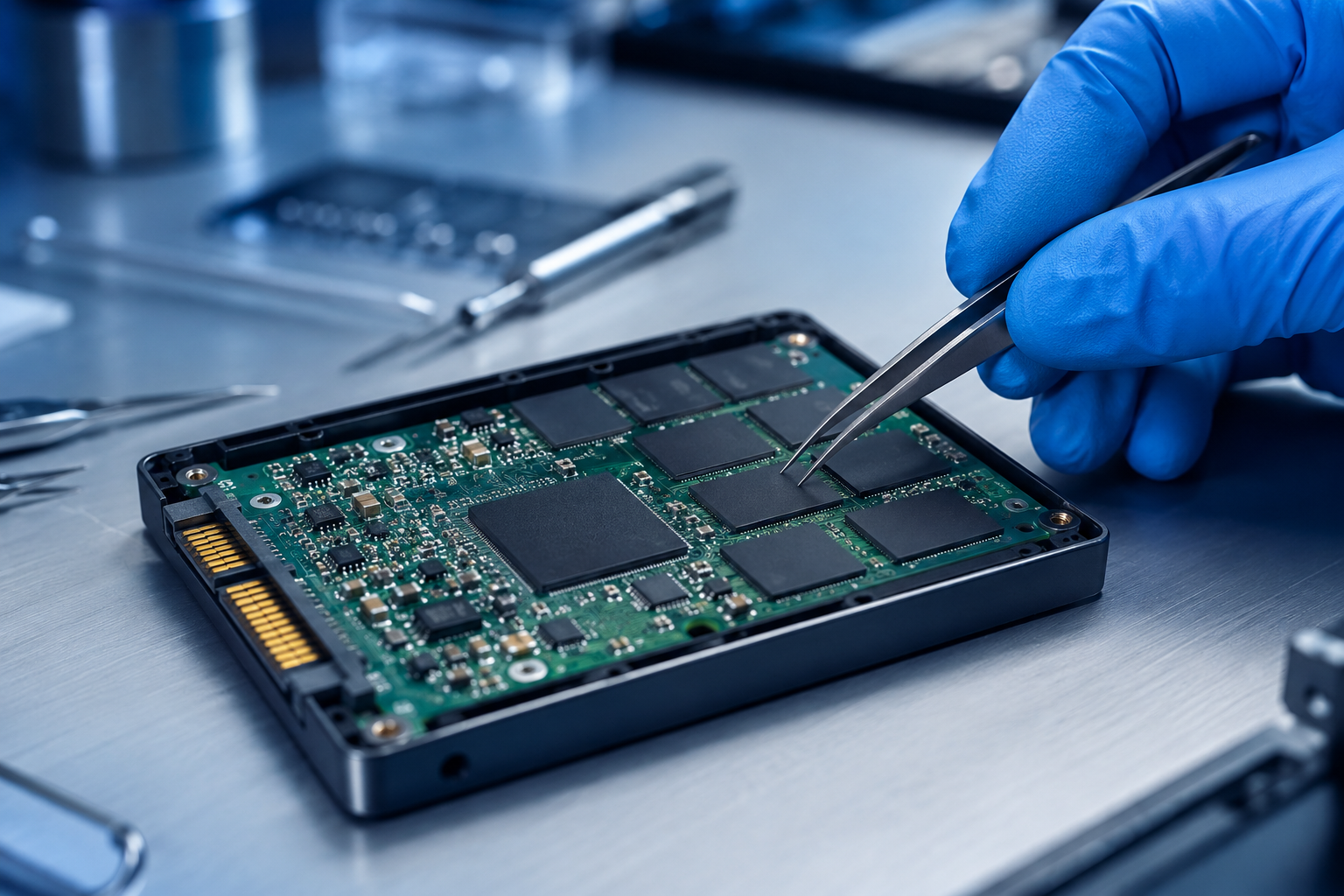
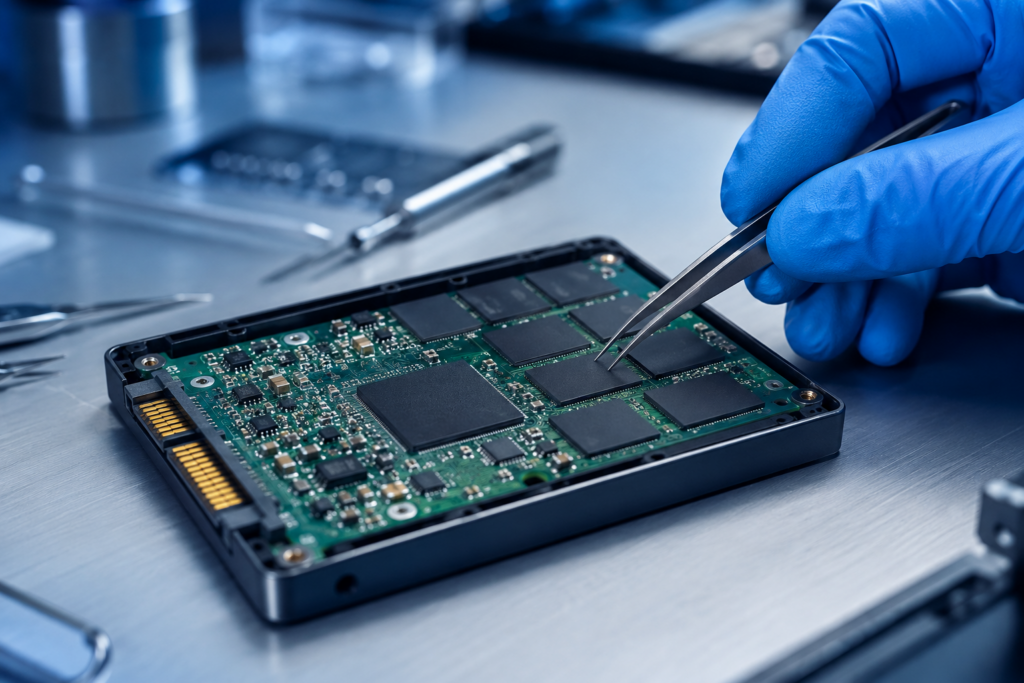
Technician handling an SSD circuit board during SSD data recovery in a clean lab

SSD Data Recovery: Why Solid-State Drives Are Harder to Save

Technician handling an SSD circuit board during SSD data recovery in a clean lab

Solid-state drives changed everything. They are faster, quieter, and far tougher than the old spinning disks. So it surprises many people to learn that SSD data recovery is often harder, not easier, than recovering a traditional hard drive. If your SSD has failed and your files seem gone, that news can feel alarming. Here is the honest picture. At DataLab Recovery, we have watched storage technology evolve since 2001, and SSDs bring a unique set of challenges. So let us explain why, and what it all means for your data.

How SSDs Store Data Differently

To understand SSD data recovery, you first need to understand how an SSD works. A hard drive stores data on spinning magnetic platters. An SSD has no moving parts at all. Instead, it saves your files on NAND flash memory chips.

That design brings huge speed. However, it also adds real complexity. A small controller chip manages where every piece of data lands. It constantly shuffles information across the chips to spread out wear, a process called wear leveling. Your operating system sees a simple, tidy drive. Underneath, though, the real layout is scrambled and always changing.

This is the first reason recovery gets tricky. Your data is not stored in neat, predictable places. Rebuilding it means understanding how that exact controller thinks. That is what makes SSD data recovery so unusual.

Why SSD Data Recovery Is So Challenging

Several factors stack up at once. Each one alone is tough. Together, they explain why this work belongs in expert hands. Newer NVMe drives can add even more layers on top.

The TRIM Command Erases Deleted Data

Here is the big one. Most modern SSDs use a feature called TRIM. When you delete a file, TRIM tells the drive to wipe those memory blocks clean, often within seconds. On a hard drive, deleted data lingers until something new overwrites it. On an SSD, it can vanish almost instantly. As a result, simple undelete tricks that work on hard drives often fail completely on solid-state drives.

Encryption Adds Another Lock

Many SSDs encrypt data automatically at the hardware level. That is great for security. For recovery, though, it raises the difficulty sharply. Without the right keys, the raw recovered data is just meaningless noise. Engineers who handle encrypted data recovery must work around this carefully, and sometimes the encryption makes a full recovery impossible.

Controller Failure Can Hide Everything

Sometimes the flash chips are perfectly fine, but the controller dies. Because the controller holds the map to your files, losing it is like losing the only index to a huge library. The pages still exist, yet nothing can find them. Recovering from controller failure often means reading the chips directly and rebuilding that map by hand. This is slow, specialized work.

Physical and Power Damage

SSDs are tough, but they are not invincible. Power surges, failed firmware, and worn-out memory cells can all cause data loss. In these cases, professional SSD data recovery may involve removing the individual chips and reading them with specialized equipment. That is far beyond what any home software can do.

What to Do If Your SSD Fails

So what should you do when an SSD stops working? Act carefully, and act quickly.

First, stop using the drive. The longer an SSD runs after a fault, the more its background processes may erase recoverable data. Power it down and set it aside.

Second, do not keep reformatting or rewriting the drive. Each attempt can push your files further out of reach. Resist the urge to try fix after fix.

Third, skip the deep DIY tools. On a healthy hard drive, recovery software has a fair chance. On a failed SSD, it rarely helps, and it can sometimes finish the job that TRIM started.

Fourth, back up everything you still have. If the SSD sits inside a larger system, copy the working data elsewhere right away. SSDs really do fail, and independent testing from Backblaze confirms that solid-state drives carry real failure rates over their lifespan.

Finally, talk to a professional. Because SSD data recovery demands specialized tools and chip-level skill, an expert gives you the best odds by far. You can request a free recovery evaluation and get an honest read on your situation before spending a cent.

Final Thoughts on SSD Data Recovery

SSDs are a brilliant piece of technology. They are fast and reliable, yet they fail in ways that catch people off guard. When they do, the rules are different from anything you knew about hard drives.

The key lesson of SSD data recovery is simple. Do less, and call for help sooner. Aggressive do-it-yourself attempts usually hurt more than they help on a solid-state drive. Your files deserve careful hands.

If your SSD has failed, do not write it off as hopeless just yet. With the right expertise, far more is recoverable than you might expect. Reach out, ask questions, and let trained engineers guide you toward the best possible outcome.

Frequently Asked Questions

Here are the common questions we hear about SSD data recovery.

Can you recover data from a dead SSD?

Sometimes, yes. If the NAND chips are still intact, engineers can often read them directly and rebuild the data. Success depends on the cause of failure and whether TRIM has already wiped the blocks. An evaluation is the only reliable way to know for sure.

Why is SSD data recovery harder than hard drive recovery?

Three big reasons. The TRIM command erases deleted files quickly, hardware encryption locks the data, and complex controllers scramble where everything sits. Together, these factors make SSD data recovery a specialized job.

Can I recover SSD data with free software?

Rarely, on a failed drive. Free tools may catch a very recent deletion on a healthy SSD. Once the drive fails or TRIM clears the blocks, though, software usually cannot help, and a professional becomes your best option.

How can I prevent SSD data loss?

Back up often, keep your firmware updated, and avoid filling the drive completely. Most importantly, replace any drive that shows warning signs before it fails outright.


Disclaimer: This content is provided for general information only. Every SSD failure differs, and recovery outcomes depend on the device and the cause of the fault. For guidance tailored to your situation, please consult a professional data recovery service.

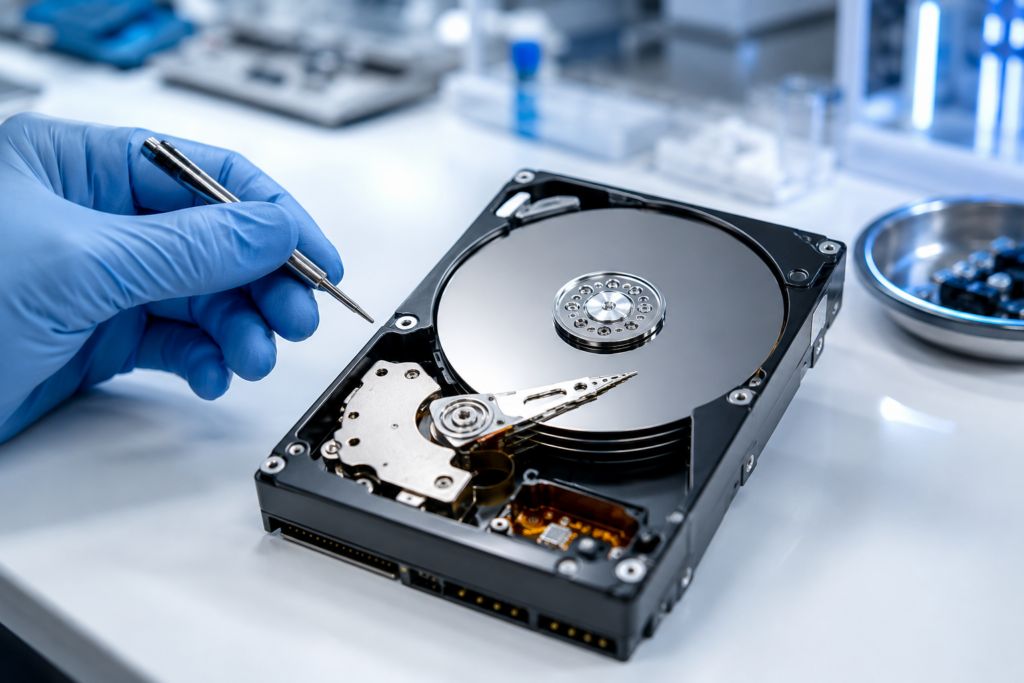
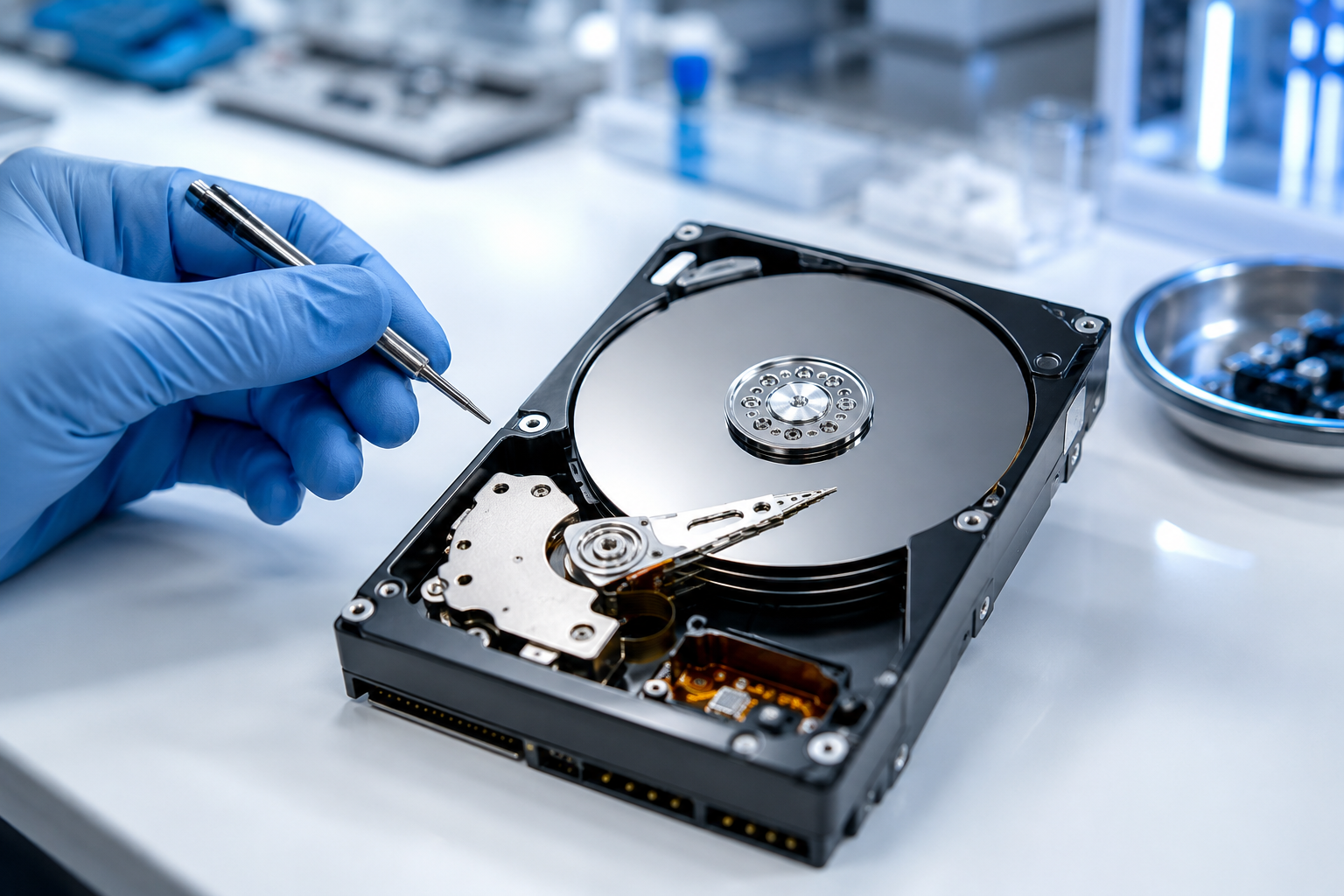
Technician performing failed hard drive recovery on an open hard drive in a clean lab

Failed Hard Drive Recovery: How to Get Your Files Back Safely

Technician performing failed hard drive recovery on an open hard drive in a clean lab

That sinking feeling is hard to forget. One moment your files are right there. The next, your computer cannot read the drive at all. If you landed here, you are probably searching for answers about failed hard drive recovery, and you want them fast. So take a breath first. The choices you make in the next few hours often decide whether your data comes home or disappears for good. Our team at DataLab Recovery has handled these cases since 2001. Because of that, we know what works and what only makes things worse. This guide walks you through it, calmly and step by step.

What Failed Hard Drive Recovery Really Means

Not every dead drive is dead in the same way. In fact, failed hard drive recovery usually splits into two very different problems. Knowing which one you face changes everything.

The first type is a logical failure. Here the hardware still works, but your data became unreachable. Maybe you deleted the wrong folder. Maybe the file system got corrupted, or a partition vanished after a bad update. The platters are fine. The information is often still sitting there, waiting.

The second type is a physical failure. This is the serious one. Something inside has broken, such as the read/write heads, the spindle motor, or the small circuit board. A physically damaged drive may click, beep, or grind. Sometimes it just stays silent and cold. Either way, this is the kind of case our hard drive recovery engineers handle every day.

So why does the difference matter? Because hard drives are mechanical, and mechanical parts wear out. Independent testing backs this up. Backblaze, which tracks hundreds of thousands of drives, reported an annual failure rate of roughly 1.36% in 2025. That number sounds small. Still, the risk adds up over a drive’s lifetime, and every drive eventually reaches the end of its road.

How to Respond When Your Hard Drive Fails

So what should you actually do during failed hard drive recovery? Follow these steps in order. Above all, do not rush.

Step 1: Stop Using the Drive Immediately

This step matters more than any other. The moment you suspect a problem, stop. Do not save new files. Do not reinstall the operating system. Every extra second of use can overwrite the data you want back. If the drive makes unusual noises, power it down right away. Continued spinning on a damaged drive can turn a recoverable case into a lost one.

Step 2: Listen and Look for Clues

Next, pay attention to the symptoms. A clicking or beeping sound almost always points to a mechanical fault. A drive that spins up but never appears on your computer may have a head or firmware issue. On the other hand, a drive that shows up but throws read errors is usually a logical problem. These clues help you, and any specialist, understand the case before anyone touches the hardware.

Step 3: Handle Logical Failures Carefully

For simple logical issues, a gentle approach can help. First, connect the drive as a secondary device, never as your main boot drive. Then, if you attempt any recovery, always save the rescued files to a different, healthy drive. Writing them back onto the failing drive risks overwriting the very data you are trying to save. Because the file system may be fragile, work slowly and avoid repeated attempts. If anything feels uncertain, stop right there.

Step 4: Never Open the Drive Yourself

This rule is non-negotiable. A hard drive is sealed for a reason. Inside, the heads float over the platters at a microscopic distance. A single speck of dust can scratch the surface and destroy your data for good. Professional labs open drives only inside a certified cleanroom, where the air is filtered to hospital-grade standards. Your kitchen table, sadly, is not a cleanroom. So please, keep the cover on.

Step 5: Know When to Call the Experts

Finally, recognize your limits. If the drive is physically damaged, clicking, or completely unreadable, professional failed hard drive recovery is the safest path. Specialists work with protected equipment and often clone the drive first, which prevents extra wear during the real recovery. You can request a free recovery evaluation and let trained engineers assess the damage before you decide anything.

Smart Habits That Protect Your Data

Recovery is the cure. Prevention, though, is far cheaper and far less stressful. A few simple habits can save you from this situation entirely. Good habits also make any future failed hard drive recovery faster and cheaper.

Back up regularly. Keep at least one copy of important files somewhere else, whether that is an external drive or a cloud account. Test those backups too. After all, a backup you never check is just a hope, not a plan.

Watch for early warning signs. Slow performance, frequent freezes, odd noises, or files that vanish can all hint at a drive on its way out. If you notice these signs, copy your data off the drive now, while you still can.

Treat your drives gently. Avoid bumps, heat, and sudden power loss. Laptops in particular take a lot of physical abuse, so handle them with a little extra care.

When the stakes are high, ask a professional. If the lost data is irreplaceable, such as business records, legal files, or family photos, do not gamble with trial and error. A specialist can tell you what is realistically recoverable. When in doubt, a quick consultation costs you nothing but a phone call.

Final Thoughts on Failed Hard Drive Recovery

A failing drive feels like an emergency, and in many ways it is. Yet panic rarely helps. The smartest move is almost always the calmest one. Stop using the drive, figure out what kind of failure you face, and avoid risky do-it-yourself fixes on damaged hardware.

Remember the core rule of failed hard drive recovery: the less you do to a damaged drive, the more a professional can usually save. Your data is worth protecting. When it truly matters, lean on people who do this every day and have the equipment to do it right.

If you are facing this right now, you do not have to figure it out alone. Reach out, ask questions, and get an honest assessment before you make a decision.

Frequently Asked Questions

Here are the questions we hear most often about failed hard drive recovery.

Can data be recovered from a completely dead hard drive?

Often, yes. Even when a drive will not power on, the platters that hold your data may be perfectly intact. In many physical cases, engineers repair the drive or transplant parts inside a cleanroom to reach that data. Success depends on the damage, so an evaluation gives you the clearest answer.

How much does professional hard drive recovery cost?

It varies with the type and severity of the failure. A logical recovery is usually simpler and cheaper than a complex mechanical repair. Reputable providers, including DataLab, assess the drive first and quote you before any work begins. With a no recovery, no fee policy, you are not charged if your data cannot be retrieved.

Is DIY software safe for failed hard drive recovery?

It depends entirely on the failure type. For a minor deletion on a healthy drive, careful software use can work. For a clicking, grinding, or physically failed drive, though, that same software can cause more harm and should be avoided. When the hardware is damaged, professional failed hard drive recovery is far safer.

How long does data recovery take?

Most standard cases finish within a few days to a week. Severe physical damage or RAID systems can take longer. Many labs also offer priority service for situations where you simply cannot wait.


Disclaimer: This article is for general information only. Every data loss situation is unique, and outcomes vary based on the condition of your device. For advice specific to your case, please consult a qualified data recovery professional.
RAID server array with rows of storage drives

Two Drive Raid Five Failure

Two Drive Raid Five failure is not as hopeless as you think. As all data recovery companies will tell you that a Raid 5 with 2 drives out is not recoverable, I say some can be recovered and as much as 80% of the data can be recovered. Certain factors are involved for this type of recovery to be possible. I have recovered a Raid 5 with 2 drives out. Our estimate is that 70 to 80% of the data was recovered.

Most people do not realize how fast a raid can go from a simple problem to a very complex one so they keep trying to get it to work. Then it goes from a one drive failure to a two drive failure or more.

If a raid stops working with one drive out, the problem is more than just the one drive since it is supposed to keep working with one drive missing.
A hardware raid has only been done. o software raid has been done as of yet.

If your raid has failed and you are unsure, give us a call. We will give you free phone evaluation of your options.

Quickly Recovering Your Lost Data

From desktop PCs to RAID server arrays, when you need emergency data recovery, you need one of the best data recovery firms in the nation.

We have been in business for over a decade and we have one of the highest success rates in the nation for recovering lost data with a lightning fast turnaround. We have the best professional data recovery engineers, and we use the safest available technology. Best of all, our prices are amazingly reasonable.
Continue reading